
Quick alarms, alarm types and resolution
When an abnormality occurs on site, select the alarm type and submit it according to company regulations; managers review the alarm records, handle the problem, and cancel the alarm within the scope of authorization.
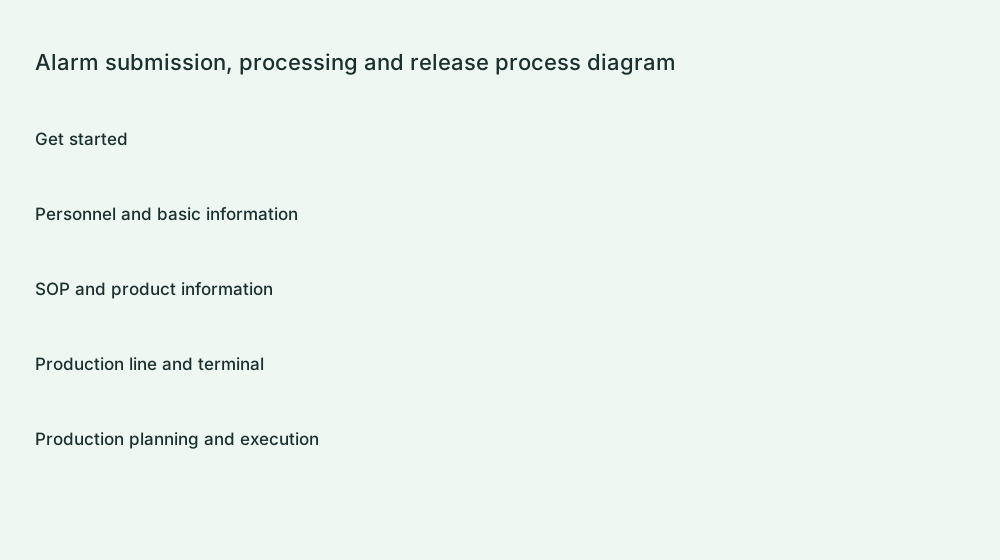
Terminal quick alarm steps
- Log in to the correct workstation and employee, and click "Quick Alarm".
- Select the type that matches the on-site anomaly and submit it after verification.
- Check the alarm history and status, and wait for the intervention of the handling personnel specified by the enterprise.
- After the actual problem is solved, the authorized personnel will choose to cancel and confirm it. The cancel button will not be regarded as proof of completion of the repair.
Association between alarms and tasks
The system schedules related tasks according to the current effective production schedule of trusted workstations; independent alarms are still allowed when there is no current effective production schedule. If the order or process is not displayed, it does not necessarily mean that the record is lost. You should first check whether there is a valid task at the workstation at that time.
administration console query and release
- Enter "Work Order & Release → Alarm Record".
- Filter by alarm type and status of unrelieved or cleared, and click "Refresh Records".
- Check the alarm person, terminal, workstation, alarm time and type.
- When you have permission to cancel, click "Cancel Alarm" and confirm.
- Refresh and check the release status and release time, and return to the scene if necessary.
Maintain the alarm type of this enterprise
- Switch to the "Alarm Type" page.
- The tenant administrator can "add this tenant type" and fill in a clear type name.
- Adjust the display order and activation status according to the needs of your enterprise, and then save your preferences.
- The self-created types of this enterprise can be renamed according to the interface rules; the built-in types are enabled and ordered according to the allowed range, and the built-in definitions are not rewritten.
- After saving, synchronize to the terminal and check the options.
History and FAQ
Deactivating a type will not erase existing alarms. When no records can be found, check the screening, time, work location and submission results; do not submit repeatedly or cancel in advance to eliminate the red status. Alarm type management and alarm release permissions are different. Ordinary employees do not have management permissions by default.
Complete inspection
The same alarm can be checked back on site and in the backend to ensure that the employees, workstations and types are correct; the status and release time after processing are consistent.
Related information:Implementation Notes · Free resources and upgrades · Terminal download